Manual / The interface
The interface
One project, two modes: Pro is the technical workbench, Present is the investor surface. Everything else — share links, embeds, the intro — is a view onto the same project.
The surfaces
| Surface | How you get there | What it is |
|---|---|---|
| First-run intro | first visit, or ?intro=1 |
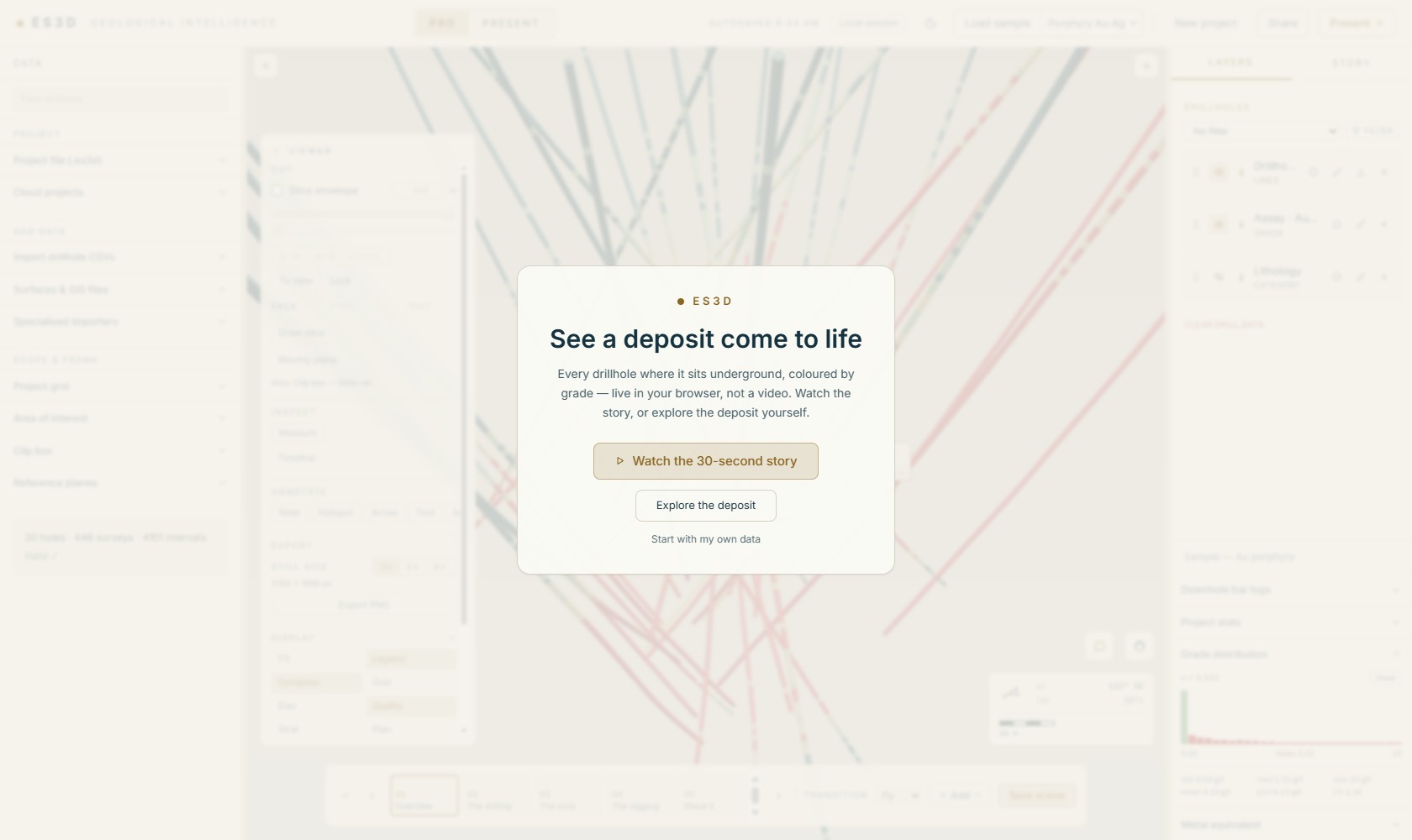
A full-screen card over a live, auto-orbiting sample deposit: Watch the 30-second story, Explore the deposit, or Start with my own data. Grabbing the canvas stops the orbit. |
| Pro | default; the mode switch in the top bar | Three columns: Data rail · 3D canvas · tabbed Inspector. |
| Present | mode switch, Present ▶, or ?mode=present |
Full-bleed story playback: cover → scene rail → narrative cards. |
| Shared story | a #story= link |
Present, opened read-only on the story; authoring controls withheld; a quiet “Made with ES3D” mark. |
| Embed | ?embed=1 in an iframe |
Chromeless read-only Present for websites. |
?intro=1.The top bar
- Left: the gold dot, ES3D · Geological Intelligence.
- Centre: the Pro / Present mode switch.
- Right: the autosave status chip (always visible — see Projects & files), sign-in menu, light/dark theme toggle, the sample-deposit picker + Load sample, New project, Share (once scenes exist) and the gold Present ▶.
Destructive actions confirm first: New project asks “Start a new project?”, and Load sample only asks when it would replace real work.
The Pro workspace
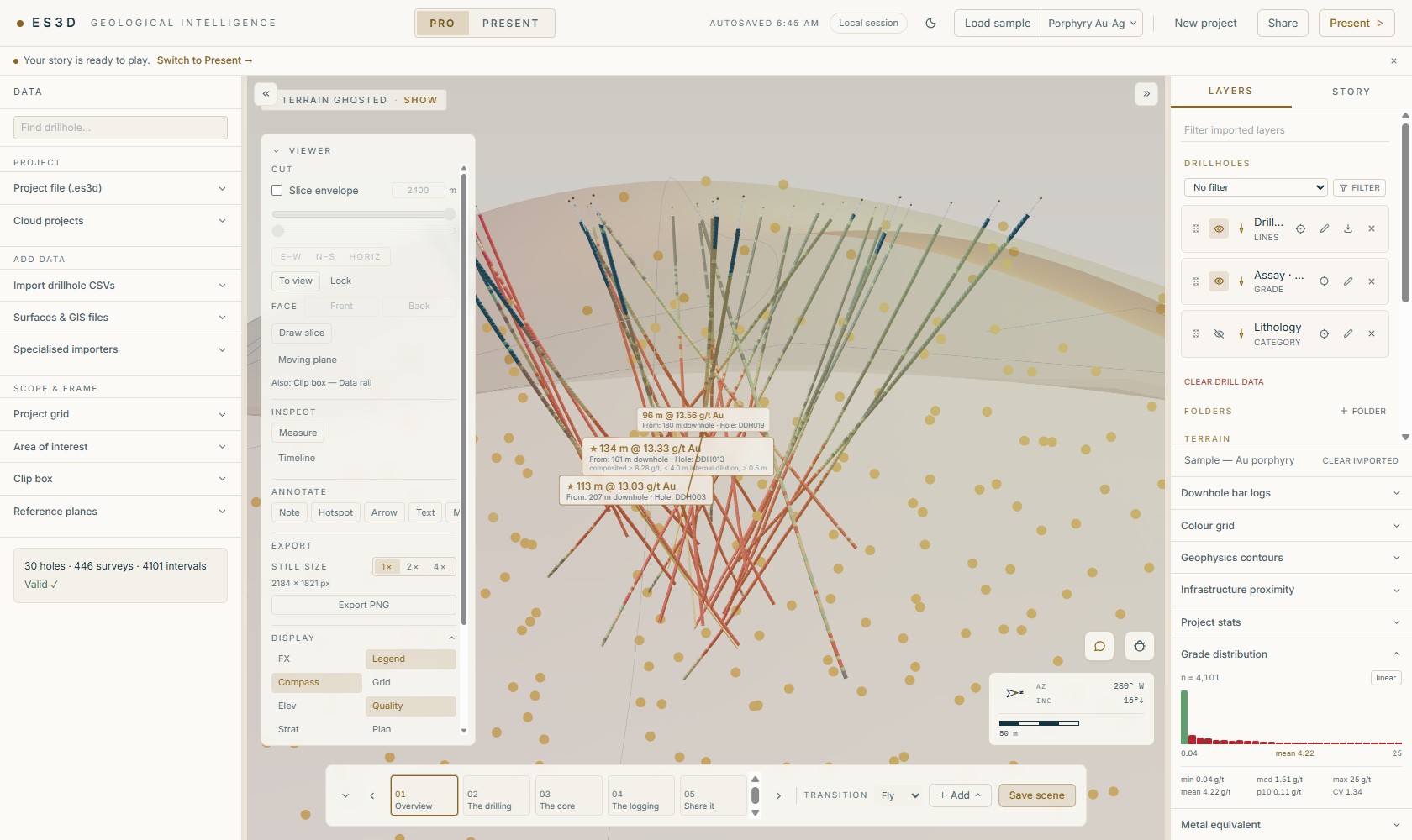
- Data rail (left) — three groups: Project
(the
.es3dfile + cloud projects), Add data (all importers) and Scope & frame (project grid & CRS, area of interest, clip box, reference planes). See Importing data. - Canvas (centre) — the model, plus the draggable Viewer tool card (slice · measure · annotate · export · display), the scene rail, the Ask dock and Report a problem. You can drop import files anywhere on it.
- Inspector (right) — two tabs. Layers: the scene tree of everything loaded, plus the display controls and read-outs that sit under it — bar logs, colour grids, geophysics contours, proximity, statistics. Story: the scene editor.
Both rails collapse via the chevrons pinned to the canvas corners and resize by dragging the gold hairline splitter (arrow keys work too). A one-line guide strip under the top bar suggests the next step — import data, save a scene, switch to Present — with a button that does it; dismiss it freely.
Search everything
Ctrl+K opens the command palette — one box across imported layers, drillholes, story scenes, every Layers-tab panel and every labelled keyboard action. Typing a hole ID glides the camera to its collar; typing a panel name opens it.
Moving the view
| Action | Gesture / key |
|---|---|
| Orbit | left-drag |
| Zoom | scroll, or right-drag; PageUp/PageDown |
| Pan | wheel-button drag, or both buttons (let go in any order |
| Pan | wheel-button drag, or both buttons; Alt+arrows |
| Recentre pivot | double-click the model |
| Compass views | N S E W, D down, U up |
| Fit all | Home |
| Perspective / orthographic | P / O |
| Auto-spin | Space |
| Previous / next scene | [ / ] |
| Save scene | Ctrl+B |
| Cancel / back out | Escape (steps out of the innermost armed tool first) |
The ? chip (or the ? key) opens the single Help — shortcuts & gestures legend with the complete registry, including the slicer and moving-plane keys covered in Slicing & viewing tools.
Ask — the assistant
The Ask dock answers questions about your project — “Summarise the top 5 intercepts”, “How many metres were drilled?” — and can drive the app (toggle a layer, frame a hole, save a scene). Every number it reports is computed from your data by the same code the panels use, never invented. In Present, audiences get read-only Ask with three free questions before a contact form.
?stats=1 for renderer capability and story-engagement
cards (per-link opens, per-scene dwell). ?perf=1 shows a draw-call/triangle HUD.